Quick answer: verify the live bindings in Settings
MECCHA CHAMELEON controls are easiest to learn with keyboard and mouse, but the binding shown by your current build is the source of truth. Before joining a public room, confirm movement, camera, interaction, paint-tool actions, role actions, menu navigation, and communication. Do not treat an older screenshot as a permanent key list.
Controller compatibility exists in alpha form after update 2.6.0. A gamepad may handle the main loop, yet keyboard or mouse can still be useful for menus, the color picker, unusual Workshop maps, or focus recovery. Update 2.8.0 changed a shortcut-related setting and warned that settings could reset, so recheck custom bindings after updating.
This guide explains actions instead of inventing universal keys. Roles use different tools, prompts are contextual, community maps can add scripts, and official updates still change input behavior. Map each action by purpose, test it on an official map, and keep a fallback device available.
MECCHA CHAMELEON control checklist
These are action groups, not a claim that every patch uses one fixed key. Match them to the current Settings menu.
| Action group | What to verify | Why it matters |
|---|---|---|
| Movement and camera | Move, jump or traversal, camera speed | Color matching and corner checks depend on controlled aim. |
| Interaction | Use, confirm, cancel, doors and prompts | Context prompts can change by room or map. |
| Paint controls | Open picker, sample, apply and switch paint functions | Hiders lose time when sample and apply are confused. |
| Role action | Seeker tool or hider ability | The command changes with role and match state. |
| Communication | Chat, voice, mute and focus | A text field can capture movement keys. |
| Menu and pause | Open Settings, back out and restore focus | This is the recovery route after a bad remap. |
Keyboard and mouse: build a reliable baseline
Start with keyboard and mouse even if you plan to use a controller. Test ordinary movement and camera rotation, then interaction, the paint interface, and the role-specific action. Change one option at a time so you know which adjustment caused an improvement or a failure.
Camera speed matters as much as movement. Too low and you cannot inspect corners; too high and a small color sample becomes difficult to select. Choose a value that allows a quick turn and a precise check of texture, gloss and shadow.
When a key appears dead, close chat, the color picker and the Steam overlay, press the configured back action once, and click the game view. A menu can own focus even when the match remains visible.
Painting controls are a workflow, not one button
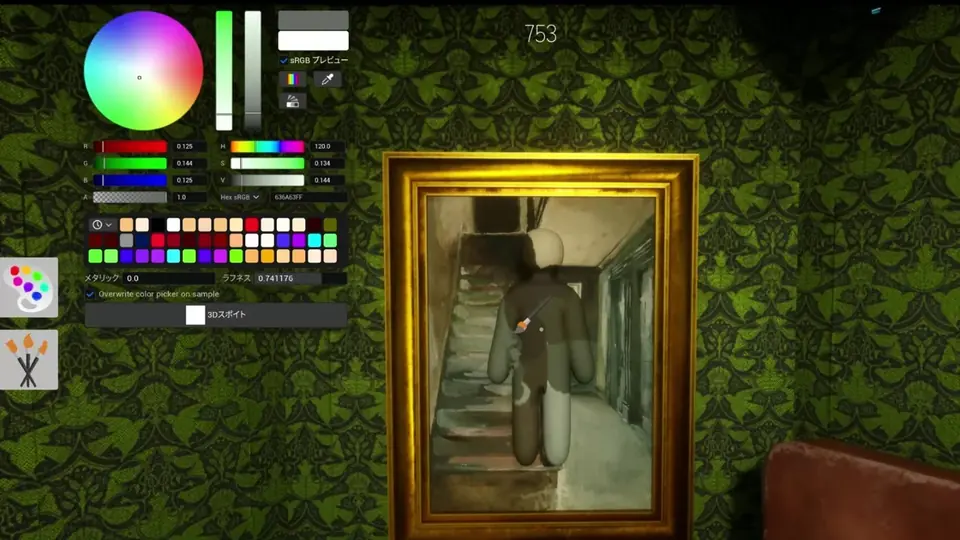
Aim at a broad surface before sampling. Bright highlights, deep shadows and reflections can produce a color that looks correct in the picker but fails on the character under normal room lighting.
Sample, apply the color, close the interface, move away and rotate the camera. Judge the disguise from a seeker’s likely angle rather than only the close-up view used while painting.
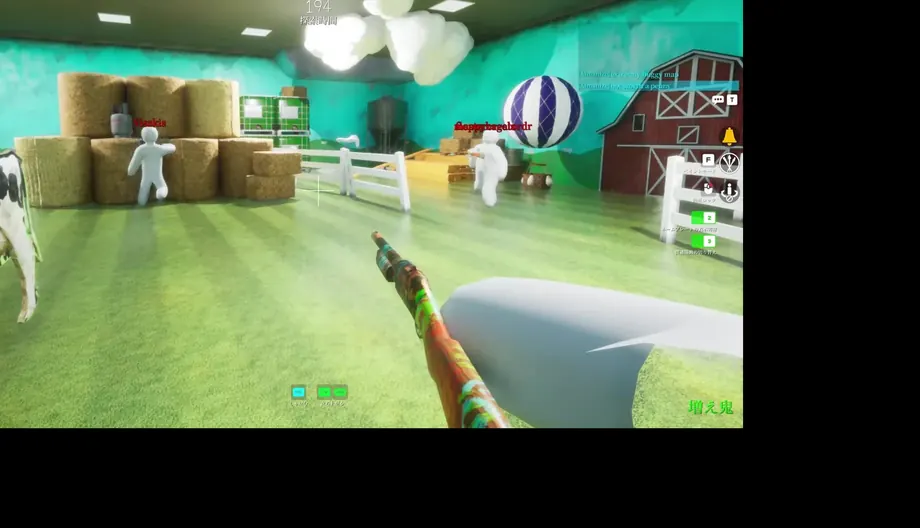
The screenshot is real gameplay, but its labels, language and map context can differ from yours. Follow the prompt in your build and remember the sequence: choose surface, sample, apply, close and verify.
Controller support is alpha, so keep a fallback
Official update 2.6.0 introduced alpha controller compatibility. Alpha is useful progress, not a guarantee for every controller model, menu, glyph, Steam Input profile or Workshop map. Test it in a low-pressure room first.
Avoid stacking the game remap, Steam Input, an operating-system utility and a vendor profile. Begin with game defaults and one standard Steam layout; customize only one layer while troubleshooting.
Keep the mouse available for the color picker and menus until you verify the full loop. If prompts switch between keyboard and controller, stop alternating devices and let the interface settle.
Version 2.8.0: recheck settings after the update
The official 2.8.0 announcement dated July 20, 2026 changed the shortcut that hides the streamer-mode password and warned that settings may reset. Open Settings before the next match and verify every custom binding or privacy-related shortcut.
Restore the intended binding, confirm the menu, leave it, reopen it and verify that the value persisted. Only then restart the game and test again. A missing custom key after the patch does not automatically mean the installation is damaged.
If settings repeatedly fail to save, remove competing Steam Input or vendor remaps temporarily, verify official game files through Steam, and retest with a simple profile. Avoid third-party controller-fix executables.
Practice controls by role before chasing a win
For a hider, repeat a short sequence: identify a broad color sample, operate the paint tool, close the interface, move to cover and check the disguise from two angles. The goal is to avoid leaving the palette open or applying the wrong sample.
For a seeker, practice camera sweeps, interaction prompts and the role action while maintaining a route. Confirm the prompt or cooldown state instead of pressing repeatedly.
For both roles, learn the pause and focus-recovery action. Recovering from chat or an overlay in two seconds is more useful than a complex layout that is difficult to remember.
Recommended setup and a repeatable practice plan
Before remapping the whole keyboard, create a simple reference profile. Keep movement and interaction comfortable, and avoid assigning two actions to the same finger when they may be needed together. Painting alternates camera, sampling and confirmation, so a readable layout is usually more reliable than a collection of macros.
Test in three stages. Cross an official map without painting and verify movement, turning, doors and menu exit. Then sample a broad wall, apply color and close the picker several times. Finally practice seeker and hider actions separately. This identifies the failing group instead of blaming the entire device.
For controller diagnosis, connect one device. Disable outside profiles temporarily, use a standard Steam Input template and watch the glyphs. A button that triggers two actions often means two remapping layers are active. If it triggers nothing, compare the same action with keyboard and mouse.
Consider comfort and accessibility. Lower sensitivity when the picker shakes, improve interface readability where options exist, and avoid a layout that strains the hand. A good setup reduces errors during a long session, not only during a thirty-second test.
After an important update, capture the Settings menu, read the official note and test an official map before Workshop content. Version 2.8.0 shows why: a small shortcut change can reset settings and resemble a broad input failure.
Keep a short verification record with date, game version, device, connection type, Steam Input status and tested map. This prevents an old configuration from being compared with a new patch and distinguishes a recurring bug from a one-time focus issue.
A useful bug report states the expected action, the observed result, role, round state and whether keyboard and mouse could perform the same command. Specific evidence helps developers and players more than a list of random repair attempts.
Controls not working: use this repair order
Confirm the game window is focused, close chat and overlays, unplug duplicate input devices, and test with keyboard and mouse. Restore only the affected action to default before resetting everything.
Next inspect Steam Input. Use either the game binding or Steam layout as the main customization layer. Reproduce the problem on an official map because a Workshop script can fail even when base controls are healthy.
Finally verify installed files through Steam. When reporting a reproducible bug, include game version 2.8.0, controller model, connection type, map, role and the exact action that failed.
MECCHA CHAMELEON controls FAQ
What are the default MECCHA CHAMELEON controls?
Open the current build’s Settings menu. Updates, roles, language and Steam Input can change prompts, so a static third-party key list should not override the live menu.
Does MECCHA CHAMELEON support controllers?
Yes. Official update 2.6.0 introduced controller compatibility in alpha. Test menus, paint actions and both roles, and keep keyboard and mouse available.
Why did my keybinds reset?
The official 2.8.0 announcement warned that settings may reset after a shortcut-related change. Restore the binding and confirm it persists.
Why can I move but not use the paint tool?
The paint interface or another UI layer may own focus, or the action may be contextual. Close menus, click the game view and test on an official map.
Can I use a Steam Input community layout?
Yes, but avoid stacking several remapping tools. Return to a standard layout when diagnosing a problem.
Do Workshop maps use different controls?
Core actions should remain familiar, but community maps can add prompts or scripts. Confirm the issue on an official map.
Official sources checked
Checked July 20, 2026. Steam is the verified Windows store page. Official announcements document controller alpha support in 2.6.0 and the current 2.8.0 settings-reset warning.
Independent fan guide. Controls can change; verify the current game menu and official Steam announcements.