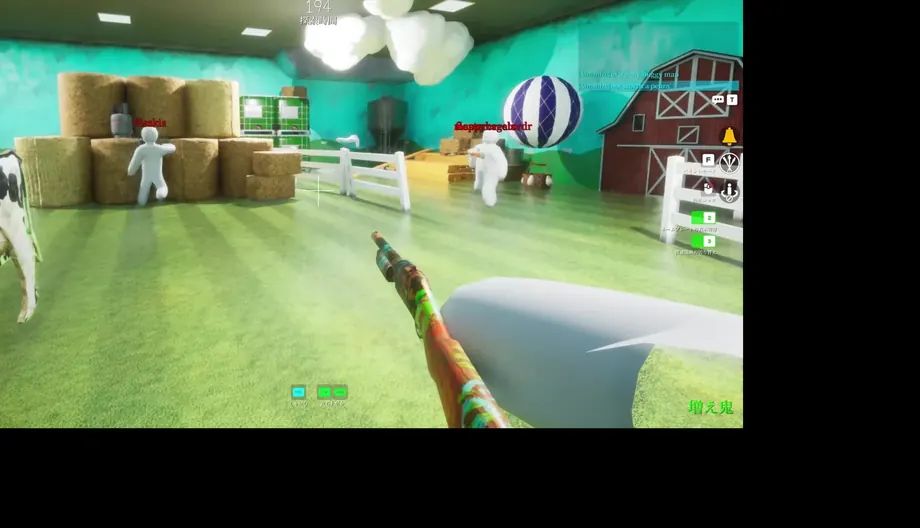
MECCHA CHAMELEON Steam Deck: the short answer
MECCHA CHAMELEON is a reasonable Steam Deck candidate if you are comfortable tuning controls and judging the game by a real round rather than by a badge alone. SteamDB currently records the game as Playable, with caveats around default controller configuration, keyboard or touchscreen input, text size, and manual graphics settings. That status is useful evidence, but it is not the same promise as Verified and it can change after a game or SteamOS update.
The game’s unusual task is painting your body to blend into a map. On Deck, that makes the input method part of compatibility. Steam Deck HQ’s hands-on report found the experience better than expected, while community reports describe touch, trackpad, or a community layout as practical ways to make sampling and painting less awkward. Treat those reports as observations, not a universal performance guarantee.
The safest path is simple: install through Steam, start with the default compatibility layer, confirm the text and prompts are readable, then test movement, camera, painting, and one multiplayer round. If the controls feel imprecise, keep a mouse or keyboard nearby and change one setting at a time. This article is about the Deck workflow; the separate system-requirements page covers the Windows PC minimums.
| Question | Evidence-backed answer | What to test yourself |
|---|---|---|
| Does it run on Deck? | SteamDB records Playable with caveats. | Launch, load an official map, and watch a real round. |
| Can you paint comfortably? | Hands-on reports describe touch, trackpad, or mapped input as workable. | Sample, apply, close the picker, and rotate the camera. |
| Will every Deck get the same FPS? | No. Hardware profile, map, SteamOS, settings, and background load vary. | Use a short session and judge frame pacing and clarity. |
| Is it a native Linux build? | The store listing presents a Windows PC release; Deck uses its compatibility path. | Check the live Steam compatibility details after updates. |
What the Steam Deck compatibility status means
A compatibility label answers a narrow question: whether the title has been assessed for the Deck’s software and control environment. SteamDB’s current entry reports Playable and calls out details that matter in practice, including occasional controller icon mismatches, text that can look small, and settings that may need manual adjustment. Read those notes as a checklist. They explain where the experience can differ from a Windows desktop even when the game launches normally.
Playable does not mean that every community layout is correct, every Workshop map uses the same prompts, or every update preserves the same frame pacing. It also does not convert a broad Windows minimum into a Deck benchmark. The official Steam page remains the source for the product description and PC requirements; SteamDB and ProtonDB provide secondary compatibility context. Keep those roles separate when a page or video claims a precise result.
The hands-on Steam Deck coverage found the game more usable than expected, especially when the player adjusted the input method for painting. ProtonDB reports are more varied because they come from different distributions, Proton versions, GPUs, and driver stacks. That variation is exactly why a short local test matters. Confirm the controls in your own profile before buying extra accessories or copying someone else’s configuration.
- Treat Playable as a useful starting signal, not a locked performance promise.
- Read the current SteamDB notes after major game or SteamOS updates.
- Keep Steam Deck HQ and ProtonDB observations labeled as hands-on or community evidence.
- Use the official Steam page for the live store text, ownership, and support path.
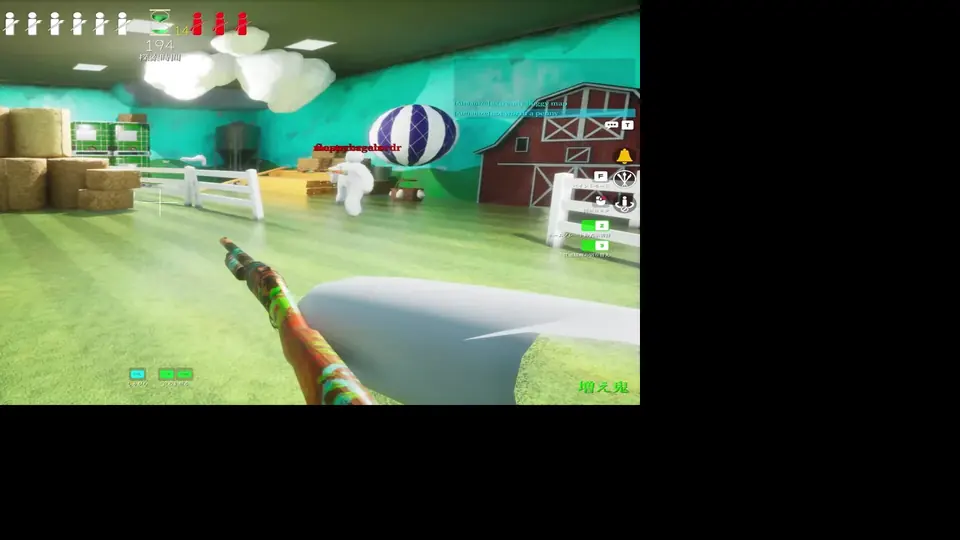
First launch: a low-risk Steam Deck setup
Install the game from the official Steam library and let Steam finish its first shader or compatibility work before changing several options. Start from the default controller profile. A clean baseline makes it easier to tell whether a problem comes from the game, Steam Input, a community layout, an external remapper, or a map-specific script.
Before joining a busy room, open the settings that control display, input, language, and accessibility. Confirm that the font is readable at your normal distance and that controller prompts match the device in your hands. If text is too small, try the game’s own scale option or the Deck’s magnification tools before lowering resolution; you need to read a paint prompt quickly while hiding.
Use a short three-pass test. First walk and turn without painting. Next sample a broad wall, apply the color, close the picker, and inspect the result from another angle. Finally join or host a low-pressure round and check camera movement, role actions, chat focus, and the pause menu. Record the device profile, SteamOS version, compatibility setting, and map if you need to troubleshoot later.
- Keep one controller profile active while diagnosing.
- Test an official map before a Workshop map.
- Change one graphics or input option at a time.
- Keep a keyboard or mouse available for menus and the color picker.
Painting, camera, and hider movement on Deck
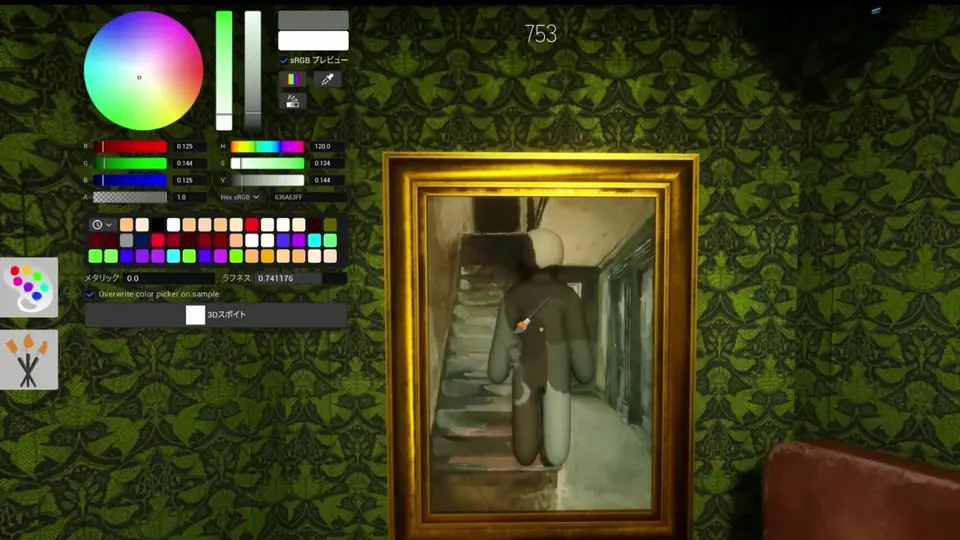
Painting is the part of MECCHA CHAMELEON that makes Steam Deck controls feel different from an ordinary gamepad test. A thumbstick can move the view, but selecting a useful sample and confirming it quickly may be easier with the touchscreen, trackpad, or a carefully mapped mouse click. Try the method that gives you a stable cursor without forcing your camera to swing while the picker is open.
Sample from a broad, evenly lit surface rather than a highlight or deep shadow. Apply the color, close the interface, then rotate the camera as if you were a seeker approaching the spot. The disguise has to work from more than the close-up angle used during painting. If you can only match one bright pixel, choose a safer surface and move to cover before the next scan.
For hiders, a good layout reduces the time between sampling, applying, and returning to movement. For seekers, it makes slow edge scans and prompt confirmation less tiring. Avoid macros and layered remaps that make a single input trigger two actions. The goal is a predictable sequence that you can repeat under a round timer, not a complicated profile that looks impressive in a screenshot.
Performance checks and sensible Steam Deck settings
Do not copy a single FPS number from a video and treat it as a guarantee. The game’s visual workload changes with map detail, player count, effects, resolution, battery mode, and background tasks. ProtonDB reports show why results vary: different Proton builds, drivers, CPUs, and GPUs can produce different frame pacing even when the title launches for everyone.
Begin with a conservative resolution and a stable frame-rate target that keeps camera movement readable. Reduce heavy effects before sacrificing the interface text you need for painting. Watch frame-time consistency during a real round, not only while standing in an empty menu. If the device becomes hot or the battery profile lowers clocks, stop the test and repeat while plugged in so you are comparing like with like.
A 30 or 40 FPS cap can feel better than an unstable higher target when you are scanning edges and sampling color. Close downloads, browser tabs, recording tools, and unused overlays. After an update, recheck the profile because shader work, Steam Input behavior, or the game’s own defaults can change. These are cautious tuning steps, not developer-recommended settings.
- Test on power and on battery separately if you play in both modes.
- Prefer stable frame pacing and readable prompts over a headline FPS number.
- Keep the Deck’s performance overlay available while comparing one change.
- Restore the default profile before reporting a reproducible problem.
Steam Deck fixes for input, text, and session problems
If you can move but cannot paint, close chat, the Steam overlay, and the color picker, then click the game view or press the configured back action once. A menu can own focus while the match still appears active. Test the same action with a mouse or keyboard. If that works, inspect Steam Input before reinstalling the game or blaming the map.
If the icons show the wrong device, disable extra remapping layers and use one standard Steam layout. Reconnect only one controller, restart the game, and confirm the prompt on an official map. Workshop content may add its own scripts or prompts, so reproduce a suspected base-game problem outside the community map before filing a report.
For small text or unclear colors, adjust the game’s display options and Deck accessibility tools, then retest in the same lighting. For stutter, verify files through Steam, finish shader processing, close background tasks, and compare a short round at a lower target. If the issue remains, record the SteamOS version, compatibility setting, game version, controller, map, role, and exact failed action.
- Reset only the affected binding before resetting the whole profile.
- Use the official Steam support and update channels for ownership or installation issues.
- Avoid cracked builds, random controller executables, and APK mirrors.
- Keep the observed result separate from a guess about the cause.
When Steam Deck is a good fit, and when Windows is easier
Steam Deck is a good fit when you value portable play, accept a short setup pass, and enjoy experimenting with touch, trackpad, or community controller input. It is less convenient when you need the largest text, precise mouse painting, or the least amount of troubleshooting. A Windows desktop with a mouse remains the simplest baseline for learning the paint workflow.
Do not use this page as proof of native macOS or mobile support. The PC requirements page explains the official Windows minimums, while the Mac and Mobile pages cover their own platform questions. Steam Deck is a handheld PC path with its own compatibility layer and input trade-offs.
The practical decision is reversible: use Steam’s official purchase and support flow, test a real round, and keep the live compatibility notes bookmarked. If the game feels good after the three-pass check, you have evidence for your own device. If it does not, a Windows setup or a later update may be a better fit than forcing an unstable profile.
MECCHA CHAMELEON Steam Deck FAQ
Independent fan guide. Not affiliated with MECCHA CHAMELEON, Valve, Steam, or the Steam Deck team. Compatibility labels, drivers, controls, and store content can change; verify the live official sources before buying or troubleshooting.